How Clippers Use Scrollify to Post More Clips (Without Screen-Recording)
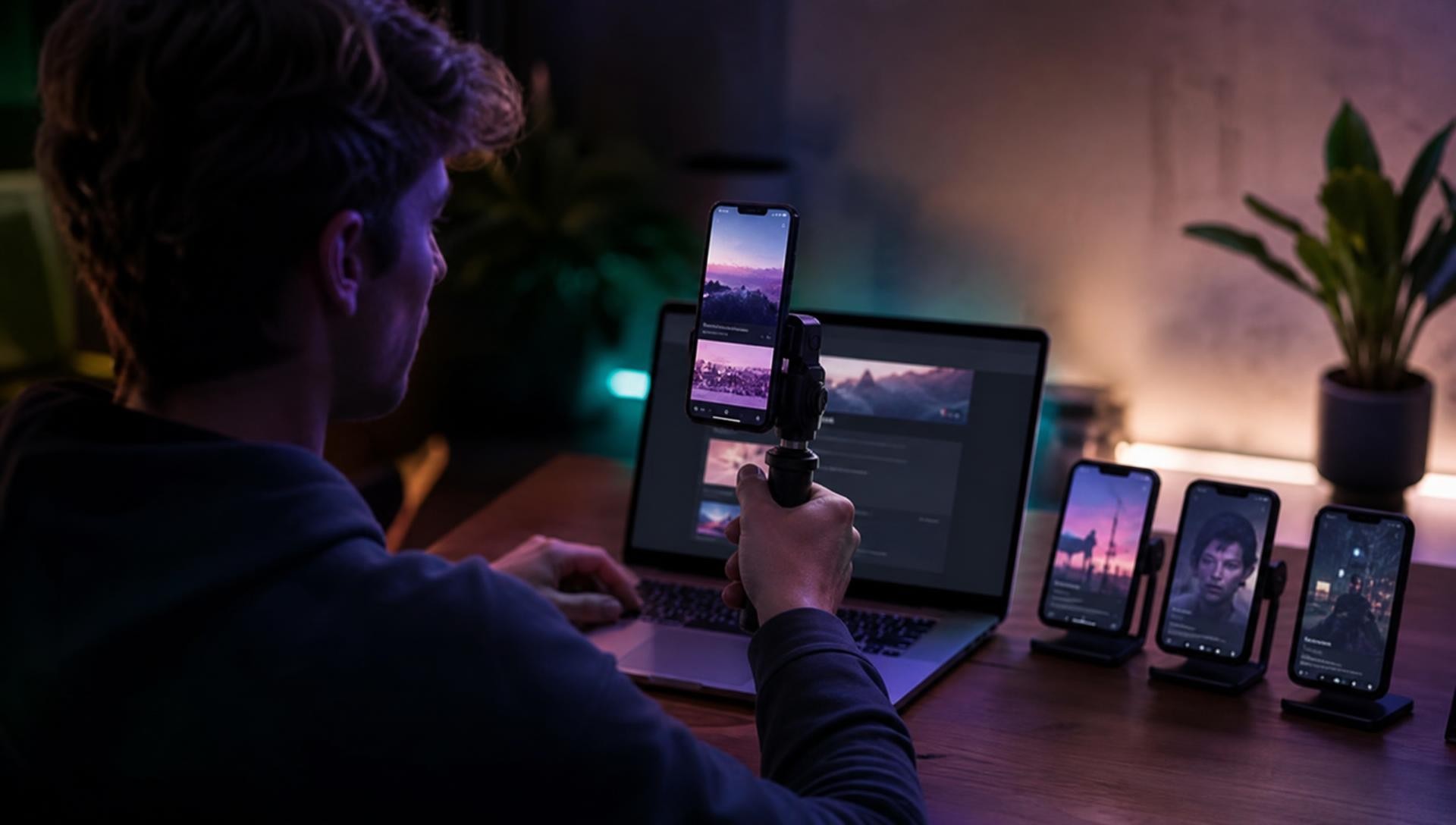
Clipping has become one of the fastest ways for creators to get paid for short-form video. A brand, app, or creator puts up a budget, clippers make short vertical videos about it, and payouts are tied to views. The economics reward one thing above all: how many good clips you can post. Most clippers we talk to say the slowest part isn’t the editing. It’s getting clean footage of the thing they’re clipping.
If the brief says “show our website” or “walk through the pricing page,” you’re usually stuck screen-recording on your phone. That means status bars, notification banners, cookie pop-ups, and a jittery thumb scroll you have to redo three times. Scrollify removes that step.
What Scrollify does for a clipper
You paste a URL. Scrollify opens the page in a cloud browser at a true mobile size, dismisses cookie banners, waits for images to load, and records a smooth, constant-speed scroll from top to bottom. You get back an MP4 (or WebM, MOV, or GIF) at 1080×1920, ready for TikTok, Reels, or Shorts. It takes under a minute, and nothing gets installed on your phone or laptop.
That file is your B-roll. Put your hook on top, add captions or a voiceover, and post.
Four clip formats that work
1. The product walk
The classic campaign clip: “I found the app everyone’s switching to, here’s why.” Voiceover three benefits while the brand’s landing page scrolls behind you. Because the scroll is even-paced, viewers can actually read the headlines you’re talking about.
2. The split-screen reaction
Your face on the top half, a clean scroll of the page on the bottom. Screen recordings break this format with phone UI showing through. A Scrollify export fills the frame edge to edge.
3. The thread or headline recap
Turn a viral thread or news article into a scrolling backdrop for commentary. If the content only exists as screenshots, upload them and Scrollify stitches them into one continuous scroll. See thread to video.
4. The “receipts” clip
Pricing changed? Feature quietly removed? Capture the page as it is today and keep a dated copy in your library for callout or comparison clips later.
A workflow for posting at volume
- Batch your links. At the start of the week, collect every page you need across your active campaigns: product pages, feature pages, pricing, app store listings.
- Queue them all at once with the Social vertical preset. Go film your talking-head segments while they render.
- Build a B-roll library. Every export lands in your Scrollify library, so you can reuse the same footage across multiple hooks and accounts.
- Re-run when brands update. New landing page for a launch? Run the same settings again and your footage stays current.
Stay inside the campaign rules
Scrollify records public pages. It doesn’t change who owns the content on them. Most clipping briefs specifically want you to show the brand’s own site, which is the main use case here. Still, read each brief for required disclosures (such as #ad or #sponsored), restrictions on claims, and whether you may feature third-party content. Most campaigns also reject watermarked footage, so use a paid plan for anything you submit.
Try it on your next campaign
Pick a link from a campaign you’re working on right now and run it through the scroll tool. The free plan lets you test the quality before you commit. When you’re ready to clip at volume, see what each plan includes, or read more on the Scrollify for Clippers page.
Try it yourself
Create your first scroll video in seconds
No software, no setup. Paste a URL and download.
Get started free