Introducing Record a Tab: Turn a Live Browser Tab Into Video
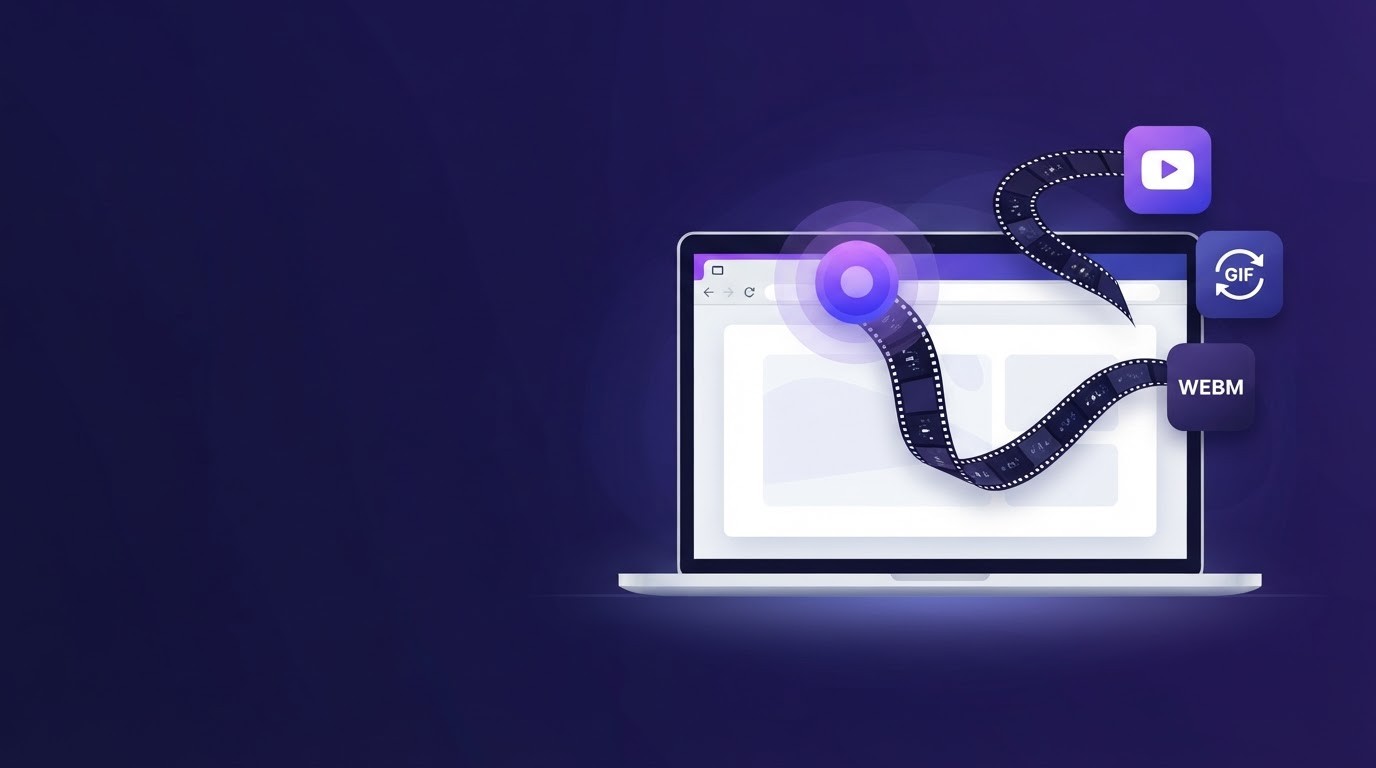
Scrollify's main tool turns a public URL into a scroll video without you touching anything — paste a link, get a capture back. That's the right approach for a marketing page. It's the wrong approach for anything that lives behind a login, updates in real time, or needs a human to actually click through it. Today we're introducing Record a Tab: a live capture mode that records exactly what happens in a browser tab while you drive it, then feeds the result straight into the same export pipeline as every other Scrollify job.
Why a live recording, not a URL capture
Plenty of the most useful things to show someone aren't reachable by URL at all. A logged-in dashboard, a SaaS product mid-onboarding, an admin panel, a live chart that only means something while it's updating, a support queue, a multi-step signup flow — none of that renders correctly (or at all) for an automated headless capture. Until now, documenting any of it meant reaching for a separate screen-recorder app, then a separate editor to trim and export it. Record a Tab collapses that into the export tool you're already using.
How it works
Open the Scroll Tool and click the Record a Tab pill — it sits right alongside Screenshot to Scroll and Documents to Video, not buried in a menu. Pick which output formats you want ahead of time, then click through a short confirmation dialog. From there, your browser's own native tab-sharing picker takes over: you choose exactly which tab to share, the same permission dialog you'd see for any screen-share, so Scrollify never has silent access to anything you haven't explicitly picked.
Once you hit stop — either from the in-app Stop button or your browser's own "stop sharing" control — Scrollify pulls focus back to the app automatically, so you land straight on the conversion progress instead of wondering where your recording went. The finished export shows up in your library seconds later, in every format you selected.
Where this fits
- Product demos and walkthroughs — record a real click-through of your app for a sales deck, onboarding email, or changelog post.
- Bug reports and QA evidence — show a bug happening live instead of describing it across three static screenshots.
- Dashboards and internal tools — capture a logged-in view Scrollify's URL capture could never reach in the first place.
- Tutorials and support macros — turn a multi-step process into a short scroll-ready clip for docs or a help center article.
Same pipeline, same quota, same watermark rules
A tab recording isn't a separate, bolted-on feature — it's a normal Scrollify job. It counts against your regular monthly export limit rather than a special one-off quota, free-plan exports still carry the Scrollify watermark exactly like every other export, and multi-format output (recording once, exporting to several formats at once) follows the same plan rules as the rest of the product. It requires a free account, since — unlike the main tool's watermarked guest demo — a recording has to be uploaded and encoded server-side before you can download anything.
Getting started
Record a Tab is available now on every plan, free included. Open the Record a Tab pill in the Scroll Tool, or read more on the Record a Tab page, then create a free account to try it.
Try it yourself
Create your first scroll video in seconds
No software, no setup. Paste a URL and download.
Get started free