How to Make a Website Walkthrough Video With Callouts (No Screen Recorder)
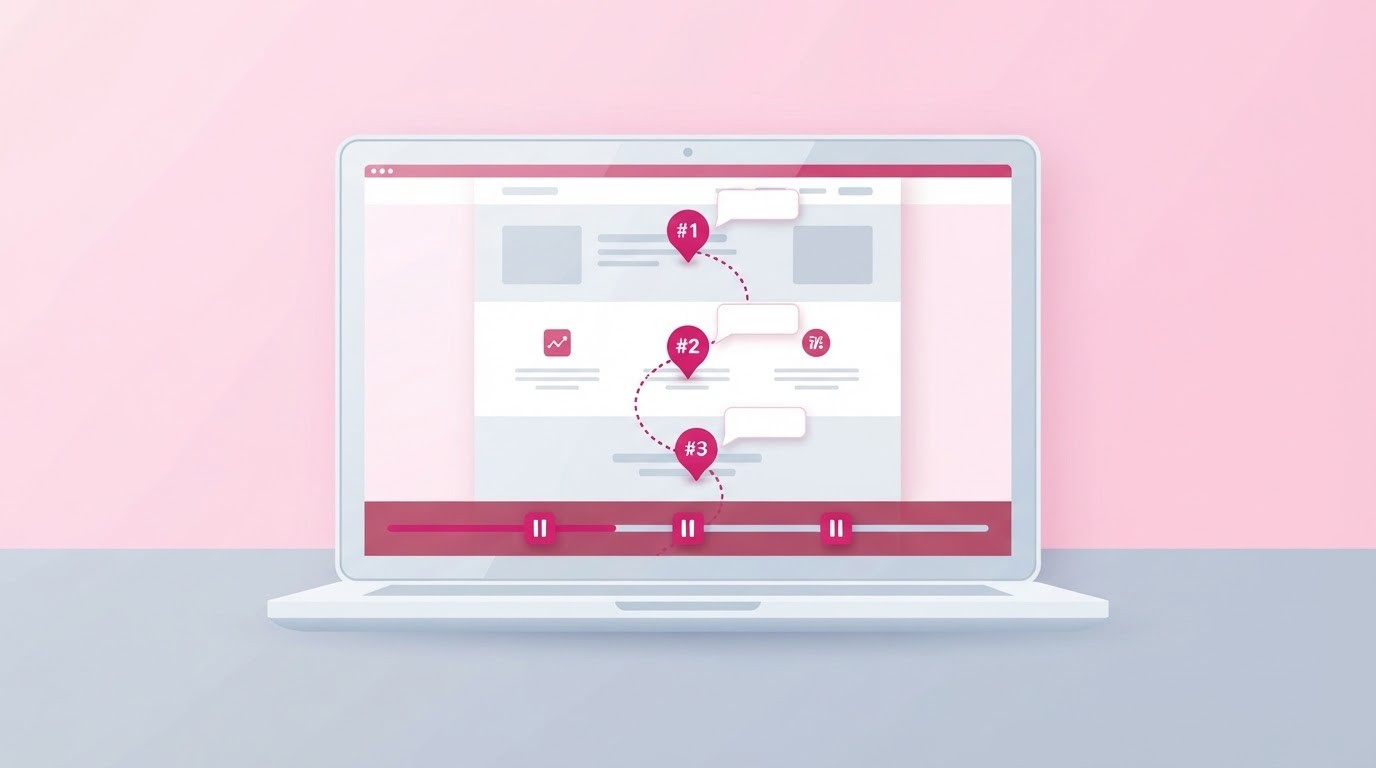
A good walkthrough video answers one question: "what should I look at?" The usual way to make one is to screen-record yourself scrolling and talking, then fix it in an editor. That gets you a video that's too fast, too long and hard to update. This guide shows a quicker way. You pin a few notes to the page and let Scrollify's annotated video maker handle the scrolling and timing.
1. Decide what the video is for
Write down, in one sentence, what the viewer should do or know after watching. For example: "The client approves the new homepage", or "New users know where to find billing", or "The developer fixes these four layout issues". Every note should serve that sentence. If one doesn't, cut it.
2. Pick the right video size first
Notes are placed on the page layout, and layouts change with width, so choose the size before you add anything:
- Desktop for client reviews, docs and most walkthroughs.
- Vertical for Reels, Shorts, TikTok and showing a mobile layout.
- Square for LinkedIn and X posts.
- Email for a lightweight GIF inside a newsletter or onboarding email.
3. Use three to five notes
Free accounts get 3 notes per video, and that limit is a good habit anyway. Most walkthroughs land best with three to five stops. If you have twelve things to say, make two or three short videos, one per section, rather than one long one.
4. Choose the right note for each point
- Callout when you need to say something about a section: "New pricing: annual is now the default."
- Arrow when the target is small, like a link, an icon or a toggle, and a label right beside it would cover something important.
- Highlight when no words are needed. A coloured outline is enough to make people look.
- Numbered pin when the explanation lives somewhere else, such as an audit doc, a ticket or a voice-over. "See point 3."
5. Write notes people can read in two seconds
Notes are capped at 140 characters for a reason. Lead with the point and cut the setup:
- Instead of "Here you can see that we've updated the hero section to include a new headline", write "New headline: clearer about who it's for."
- Instead of "This button might be a little hard to find for some users", write "CTA is below the fold on mobile. Move it up."
Use the same colour for the same kind of note. For example, pink for changes and amber for issues. Viewers will pick up the pattern without being told.
6. Set the pause to match the note
The default pause is 2.5 seconds. A rough rule is one second per five words, with a minimum of 1.5 seconds. Give the note that matters most a little longer. The editor shows the estimated length as you go, and Preview video plays it with your exact timing before you export.
7. Order notes the way the page reads
Scrollify scrolls to the notes in list order. Top to bottom is easiest to follow. Jumping back up the page is allowed, but each jump costs the viewer a moment to find their place again. Use the up and down arrows in the notes list to reorder, and the timing updates on its own.
8. Export, share and update
Export an MP4 for chat, email attachments and docs, or a GIF if it needs to autoplay inline. The video lands in your library like any other export. When the page changes, use the Annotate button on that export. It reopens the page at the same size with your notes, so you can tweak them and export a fresh version in a minute. An export only counts against your plan once it's delivered.
Common walkthrough recipes
- Client handoff: 1) what the page is for, 2) the main call to action, 3) where to edit content, 4) anything still pending.
- Feature launch: 1) the new feature, 2) the benefit in one line, 3) where to try it.
- Landing page audit: number each issue with a pin and keep the details in your report. See website feedback videos.
- Onboarding: one short video per area (dashboard, settings, billing) rather than one long tour. See website walkthrough videos.
Make your first one
Open the annotation editor, paste a URL and try three notes. It's free with any account. New here? Start with the launch post for an overview of every note type.
Try it yourself
Create your first scroll video in seconds
No software, no setup. Paste a URL and download.
Get started free