Introducing Annotated Scroll Videos: Callouts, Arrows and Highlights on Any Web Page
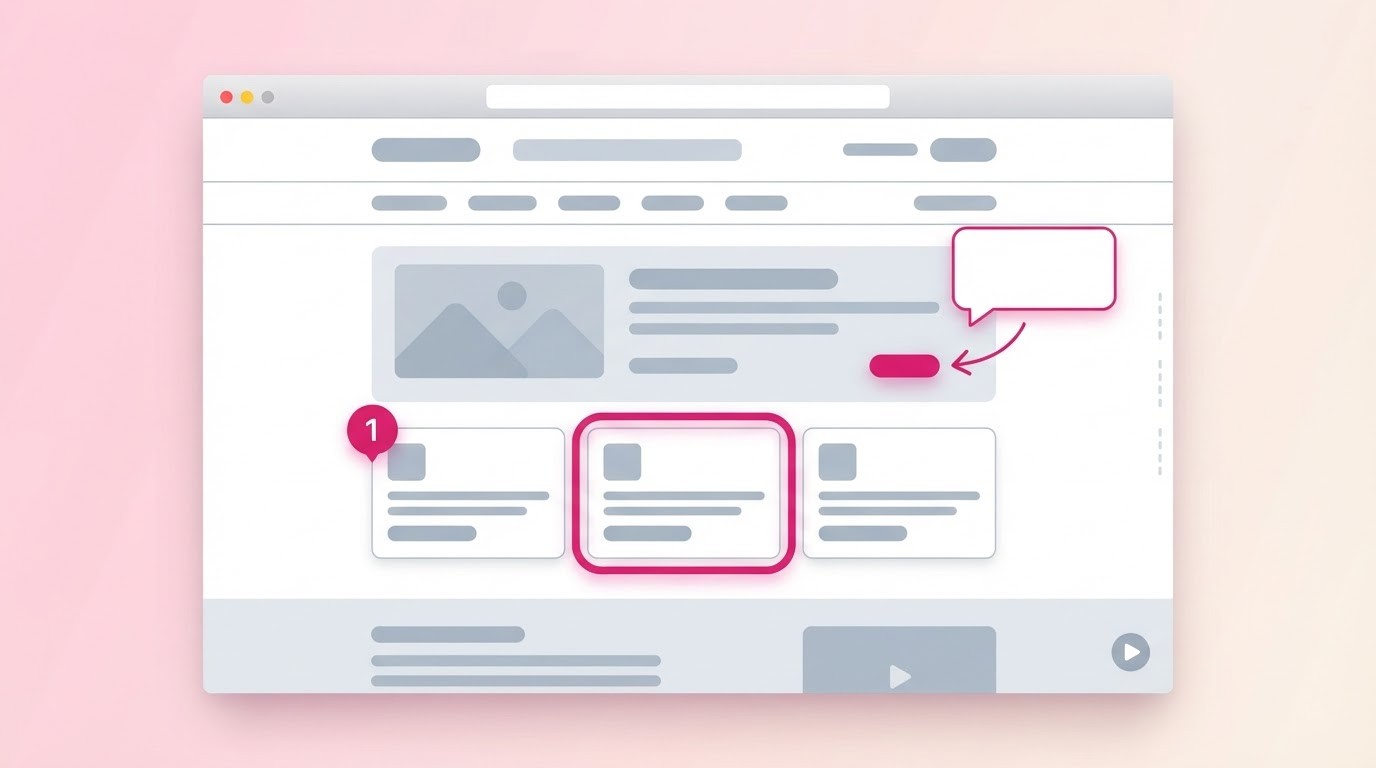
A scroll video shows a whole page. Most of the time, though, you want people to look at one or two things on it: a new pricing table, a headline that needs work, the button you want them to click. Today we're launching annotated scroll videos. Drag a box around anything on a page, write a short note, and Scrollify builds a video that scrolls to each note, pauses so it can be read, and moves on.
What you can add
- Callouts: a numbered label with your text, placed beside the part of the page you boxed.
- Arrows: a note set a little further away, with an arrow pointing back at the target. Good for small things like a link or an icon.
- Highlights: an outline with no text, for when the point is obvious once people are looking in the right place.
- Numbered pins: a small numbered marker you can talk through in an email, a call or a written report.
Every note has its own colour, label position and pause length, from 1 to 6 seconds.
Why notes are pinned to the page, not the video
If you've added arrows to a screen recording in a video editor, you know the pain: the page moves, so every arrow has to move with it, keyframe by keyframe. Change one sentence and you're back on the timeline.
Scrollify places each note on the page itself, at the spot you drew it. When the video scrolls, the note moves with the content it points at, the same way a sticky note stays on a printed page. Scrollify works out the timing for you. It scrolls to note one, fades it in, holds it, then moves to note two. Reorder the notes or change a pause and export again, and the timing updates on its own.
How to make one
- Open the annotation editor and paste a URL. Pick a video size: desktop, square, vertical or email.
- Scrollify opens the page in a real browser and shows you a full-page preview. Previews are free.
- Drag a box around something on the page. Pick a note type, write your text and set how long it stays on screen.
- Press Preview video to watch the scroll with your timing, then export an MP4 or GIF.
Already have the video in your library? Every scroll export now has an Annotate button. It opens the same page at the same size, so you can add notes and export a new version. If the export was already annotated, your earlier notes come back ready to edit.
What it costs
Annotated videos work on every plan. Free accounts can add up to 3 notes per video, and Starter and higher plans can add up to 12. An export uses one generation, the same as a normal scroll video, and it only counts once your annotated video is delivered. If an export fails, it doesn't count. Compare plans.
Where it helps
- Agencies walking a client through a new homepage, or showing what changed since the last round. See website feedback videos.
- UX, CRO and SEO reviews, where each issue gets a number and the client watches one short video instead of reading a 20-page PDF.
- Product marketing and support turning a feature or pricing page into a guided tour. See website walkthrough videos.
- Anyone sending a link with context: "look here, then here, then click this".
Try it
Open the editor, paste the page you're working on and add your first three notes. Read more on the annotated website video page, or follow our step-by-step guide: how to make a website walkthrough video with callouts.
Try it yourself
Create your first scroll video in seconds
No software, no setup. Paste a URL and download.
Get started free